


7,655
社区成员
 发帖
发帖 与我相关
与我相关 我的任务
我的任务
 分享
分享
<Page.Resources>

        <Style x:Key="AppBarButtonStyle" TargetType="AppBarButton">

            <Setter Property="Template">

                <Setter.Value>

                    <ControlTemplate  TargetType="AppBarButton">

                        <Grid x:Name="RootGrid" Width="100" Background="Transparent">

                            <VisualStateManager.VisualStateGroups>

                                <VisualStateGroup x:Name="ApplicationViewStates">

                                    <!-- FullSize is used when we are in landscape or filled mode -->

                                    <VisualState x:Name="FullSize"/>

                                    <!-- Compact is used when we are in portrait or snapped mode -->

                                    <VisualState x:Name="Compact">

                                        <Storyboard>

                                            <ObjectAnimationUsingKeyFrames Storyboard.TargetName="TextLabel" Storyboard.TargetProperty="Visibility">

                                                <DiscreteObjectKeyFrame KeyTime="0" Value="Collapsed"/>

                                            </ObjectAnimationUsingKeyFrames>

                                            <ObjectAnimationUsingKeyFrames Storyboard.TargetName="RootGrid" Storyboard.TargetProperty="Width">

                                                <DiscreteObjectKeyFrame KeyTime="0" Value="60"/>

                                            </ObjectAnimationUsingKeyFrames>

                                        </Storyboard>

                                    </VisualState>

                                </VisualStateGroup>

                                <VisualStateGroup x:Name="CommonStates">

                                    <VisualState x:Name="Normal"/>

                                    <VisualState x:Name="PointerOver">

                                        <Storyboard>

                                            <ObjectAnimationUsingKeyFrames Storyboard.TargetName="BackgroundEllipse" Storyboard.TargetProperty="Fill">

                                                <DiscreteObjectKeyFrame KeyTime="0" Value="{ThemeResource AppBarItemPointerOverBackgroundThemeBrush}"/>

                                            </ObjectAnimationUsingKeyFrames>

                                            <ObjectAnimationUsingKeyFrames Storyboard.TargetName="Content" Storyboard.TargetProperty="Foreground">

                                                <DiscreteObjectKeyFrame KeyTime="0" Value="{ThemeResource AppBarItemPointerOverForegroundThemeBrush}"/>

                                            </ObjectAnimationUsingKeyFrames>

                                        </Storyboard>

                                    </VisualState>

                                    <VisualState x:Name="Pressed">

                                        <Storyboard>

                                            <ObjectAnimationUsingKeyFrames Storyboard.TargetName="OutlineEllipse" Storyboard.TargetProperty="Stroke">

                                                <DiscreteObjectKeyFrame KeyTime="0" Value="{ThemeResource AppBarItemForegroundThemeBrush}"/>

                                            </ObjectAnimationUsingKeyFrames>

                                            <ObjectAnimationUsingKeyFrames Storyboard.TargetName="BackgroundEllipse" Storyboard.TargetProperty="Fill">

                                                <DiscreteObjectKeyFrame KeyTime="0" Value="{ThemeResource AppBarItemForegroundThemeBrush}"/>

                                            </ObjectAnimationUsingKeyFrames>

                                            <ObjectAnimationUsingKeyFrames Storyboard.TargetName="Content" Storyboard.TargetProperty="Foreground">

                                                <DiscreteObjectKeyFrame KeyTime="0" Value="{ThemeResource AppBarItemPressedForegroundThemeBrush}"/>

                                            </ObjectAnimationUsingKeyFrames>

                                        </Storyboard>

                                    </VisualState>

                                    <VisualState x:Name="Disabled">

                                        <Storyboard>

                                            <ObjectAnimationUsingKeyFrames Storyboard.TargetName="OutlineEllipse" Storyboard.TargetProperty="Stroke">

                                                <DiscreteObjectKeyFrame KeyTime="0" Value="{ThemeResource AppBarItemDisabledForegroundThemeBrush}"/>

                                            </ObjectAnimationUsingKeyFrames>

                                            <ObjectAnimationUsingKeyFrames Storyboard.TargetName="Content" Storyboard.TargetProperty="Foreground">

                                                <DiscreteObjectKeyFrame KeyTime="0" Value="{ThemeResource AppBarItemDisabledForegroundThemeBrush}"/>

                                            </ObjectAnimationUsingKeyFrames>

                                            <ObjectAnimationUsingKeyFrames Storyboard.TargetName="TextLabel" Storyboard.TargetProperty="Foreground">

                                                <DiscreteObjectKeyFrame KeyTime="0" Value="{ThemeResource AppBarItemDisabledForegroundThemeBrush}"/>

                                            </ObjectAnimationUsingKeyFrames>

                                        </Storyboard>

                                    </VisualState>

                                </VisualStateGroup>

                                <VisualStateGroup x:Name="FocusStates">

                                    <VisualState x:Name="Focused">

                                        <Storyboard>

                                            <DoubleAnimation

                            Storyboard.TargetName="FocusVisualWhite"

                            Storyboard.TargetProperty="Opacity"

                            To="1"

                            Duration="0"/>

                                            <DoubleAnimation

                            Storyboard.TargetName="FocusVisualBlack"

                            Storyboard.TargetProperty="Opacity"

                            To="1"

                            Duration="0"/>

                                        </Storyboard>

                                    </VisualState>

                                    <VisualState x:Name="Unfocused" />

                                    <VisualState x:Name="PointerFocused" />

                                </VisualStateGroup>

                            </VisualStateManager.VisualStateGroups>


                            <StackPanel Orientation="Horizontal"

                                VerticalAlignment="Top" Margin="0,14,0,13">

                                <Grid Width="40" Height="40" Margin="0,0,0,5" HorizontalAlignment="Center">

                                    <Ellipse

                    x:Name="BackgroundEllipse"

                    UseLayoutRounding="False"

                    Width="40"

                    Height="40"

                    Fill="{ThemeResource AppBarItemBackgroundThemeBrush}"/>

                                    <Ellipse

                    x:Name="OutlineEllipse"

                    UseLayoutRounding="False"

                    Width="40"

                    Height="40"

                    Stroke="{ThemeResource AppBarItemForegroundThemeBrush}"

                    StrokeThickness="2" />

                                    <ContentPresenter

                    x:Name="Content"

                    Content="{TemplateBinding Icon}"

                    Foreground="{TemplateBinding Foreground}"

                    HorizontalAlignment="Stretch"

                    VerticalAlignment="Stretch"

                    AutomationProperties.AccessibilityView="Raw"/>

                                </Grid>

                                <TextBlock VerticalAlignment="Center"

                  x:Name="TextLabel"

                  Text="{TemplateBinding Label}"

                  Foreground="{ThemeResource AppBarItemForegroundThemeBrush}"

                  FontSize="12"

                  FontFamily="{TemplateBinding FontFamily}"

                  TextAlignment="Center"

                  Width="58"

                  TextWrapping="Wrap"/>

                            </StackPanel>

                            <Rectangle

                x:Name="FocusVisualWhite"

                IsHitTestVisible="False"

                Stroke="{ThemeResource FocusVisualWhiteStrokeThemeBrush}"

                StrokeEndLineCap="Square"

                StrokeDashArray="1,1"

                Opacity="0"

                StrokeDashOffset="1.5"/>

                            <Rectangle

                x:Name="FocusVisualBlack"

                IsHitTestVisible="False"

                Stroke="{ThemeResource FocusVisualBlackStrokeThemeBrush}"

                StrokeEndLineCap="Square"

                StrokeDashArray="1,1"

                Opacity="0"

                StrokeDashOffset="0.5"/>

                        </Grid>

                    </ControlTemplate>

                </Setter.Value>

            </Setter>

        </Style>

    </Page.Resources>


    <Grid Background="{ThemeResource ApplicationPageBackgroundThemeBrush}">

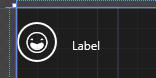
        <AppBarButton Icon="Emoji" Label="Label" Style="{StaticResource AppBarButtonStyle}"/>

    </Grid>