


102
社区成员
 发帖
发帖 与我相关
与我相关 我的任务
我的任务
 分享
分享创建新的Android项目。使用Android Studio创建一个新项目,选择合适的模板并设置基本的项目结构和属性。
设计计算器的用户界面。在XML布局文件中设计计算器的用户界面,包括添加布局管理器以组织控件,并添加必要的控件如按钮和编辑框。
实现计算器的基本功能。在主Activity的Kotlin文件中,为每个按钮控件设置点击事件监听器,并在回调方法中实现计算逻辑,包括数字输入、运算符选择以及计算结果展示。
步骤一:创建新的Android项目
打开Android Studio,选择“创建新项目”。
填写项目名称、保存位置等信息,选择最小SDK版本。
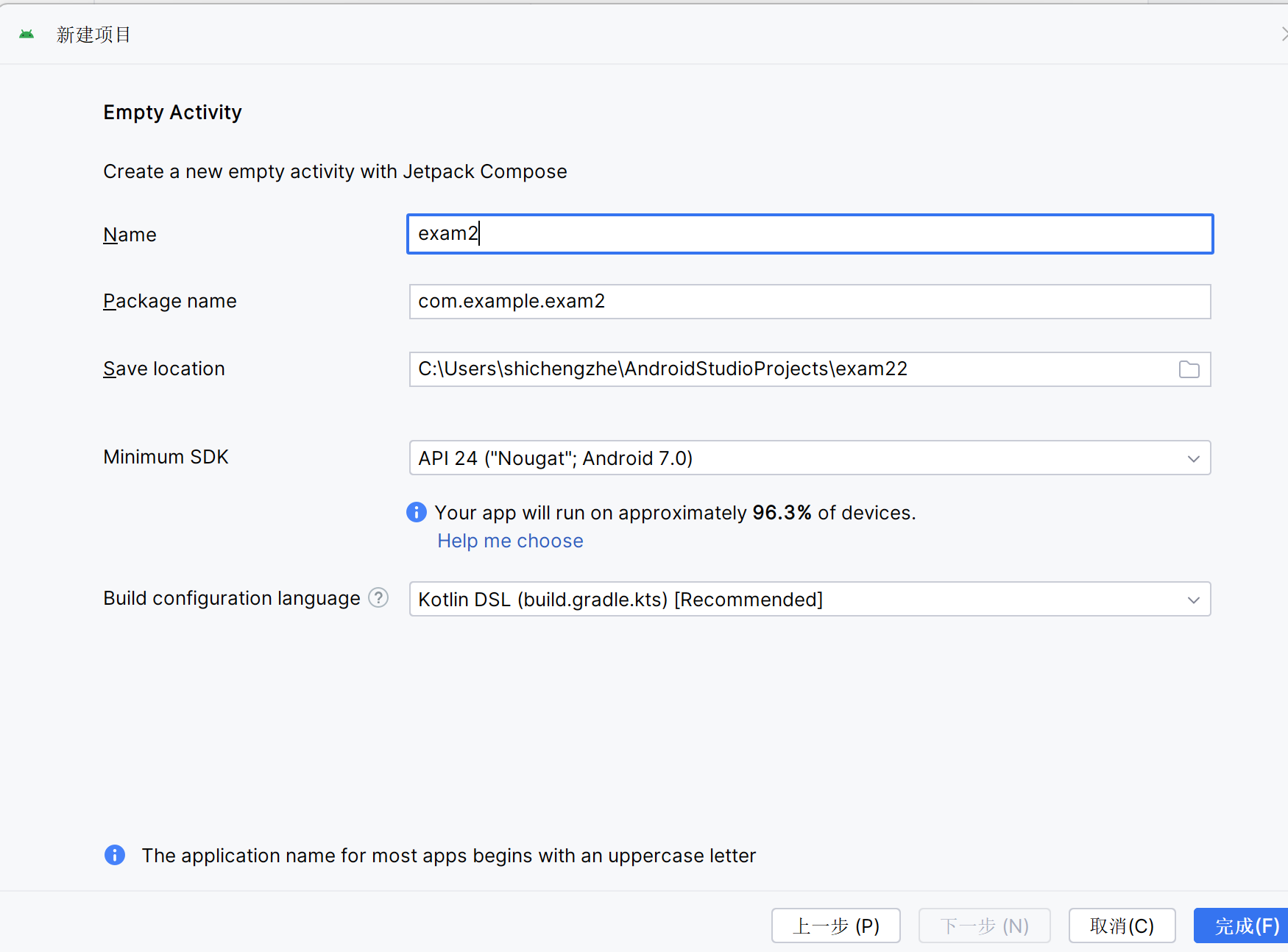
步骤二:设计计算器的用户界面
打开activity_main.xml文件,这是主Activity的布局文件。
使用LinearLayout或RelativeLayout等布局管理器来组织控件。
<?xml version="1.0" encoding="utf-8"?>
<LinearLayout xmlns:android="http://schemas.android.com/apk/res/android"
xmlns:app="http://schemas.android.com/apk/res-auto"
xmlns:tools="http://schemas.android.com/tools"
android:layout_width="match_parent"
android:layout_height="match_parent"
android:orientation="vertical"
tools:context=".MainActivity"
android:background="#000000" >
<!-- 文本输入框 -->
<EditText
android:id="@+id/et_input"
android:layout_width="match_parent"
android:layout_height="80dp"
android:background="@drawable/white"
android:hint="@string/app_name"
android:paddingBottom="5dp"
android:textSize="30sp" />
<!-- 第一行按钮 -->
<LinearLayout
android:layout_width="fill_parent"
android:layout_height="wrap_content"
android:layout_marginTop="30dp"
android:orientation="horizontal"
android:gravity="center_horizontal">
<Button
android:id="@+id/btn_clr"
android:layout_width="80dp"
android:layout_height="80dp"
android:text="C"
android:textSize="30sp"
android:paddingRight="15sp"
android:paddingBottom="15sp"
android:background="@drawable/selector"/>
<Button
android:id="@+id/btn_del"
android:layout_width="80dp"
android:layout_height="80dp"
android:text="D"
android:textSize="30sp"
android:layout_marginLeft="10dp"
android:paddingRight="15sp"
android:paddingBottom="15sp"
android:background="@drawable/selector"/>
<Button
android:id="@+id/btn_div"
android:layout_width="80dp"
android:layout_height="80dp"
android:text="÷"
android:textSize="30sp"
android:layout_marginLeft="10dp"
android:paddingRight="15sp"
android:paddingBottom="15sp"
android:background="@drawable/selector"/>
<Button
android:id="@+id/btn_mul"
android:layout_width="80dp"
android:layout_height="80dp"
android:text="×"
android:textSize="30sp"
android:layout_marginLeft="10dp"
android:paddingRight="15sp"
android:paddingBottom="15sp"
android:background="@drawable/selector"/>
</LinearLayout>
<!-- 第二行按钮 -->
<LinearLayout
android:layout_width="fill_parent"
android:layout_height="wrap_content"
android:layout_marginTop="10dp"
android:orientation="horizontal"
android:gravity="center_horizontal"
>
<Button
android:id="@+id/btn_7"
android:layout_width="80dp"
android:layout_height="80dp"
android:text="7"
android:textSize="30sp"
android:paddingRight="15sp"
android:paddingBottom="15sp"
android:background="@drawable/selector"/>
<Button
android:id="@+id/btn_8"
android:layout_width="80dp"
android:layout_height="80dp"
android:text="8"
android:textSize="30sp"
android:layout_marginLeft="10dp"
android:paddingRight="15sp"
android:paddingBottom="15sp"
android:background="@drawable/selector"/>
<Button
android:id="@+id/btn_9"
android:layout_width="80dp"
android:layout_height="80dp"
android:text="9"
android:textSize="30sp"
android:layout_marginLeft="10dp"
android:paddingRight="15sp"
android:paddingBottom="15sp"
android:background="@drawable/selector"/>
<Button
android:id="@+id/btn_sub"
android:layout_width="80dp"
android:layout_height="80dp"
android:text="-"
android:textSize="30sp"
android:layout_marginLeft="10dp"
android:paddingRight="15sp"
android:paddingBottom="15sp"
android:background="@drawable/selector" />
</LinearLayout>
<!-- 第三行按钮 -->
<LinearLayout
android:layout_width="fill_parent"
android:layout_height="wrap_content"
android:layout_marginTop="10dp"
android:orientation="horizontal"
android:gravity="center_horizontal"
>
<Button
android:id="@+id/btn_4"
android:layout_width="80dp"
android:layout_height="80dp"
android:text="4"
android:textSize="30sp"
android:paddingRight="15sp"
android:paddingBottom="15sp"
android:background="@drawable/selector"/>
<Button
android:id="@+id/btn_5"
android:layout_width="80dp"
android:layout_height="80dp"
android:text="5"
android:textSize="30sp"
android:layout_marginLeft="10dp"
android:paddingRight="15sp"
android:paddingBottom="15sp"
android:background="@drawable/selector"/>
<Button
android:id="@+id/btn_6"
android:layout_width="80dp"
android:layout_height="80dp"
android:text="6"
android:textSize="30sp"
android:layout_marginLeft="10dp"
android:paddingRight="15sp"
android:paddingBottom="15sp"
android:background="@drawable/selector"/>
<Button
android:id="@+id/btn_add"
android:layout_width="80dp"
android:layout_height="80dp"
android:text="+"
android:textSize="30sp"
android:layout_marginLeft="10dp"
android:paddingRight="15sp"
android:paddingBottom="15sp"
android:background="@drawable/selector"/>
</LinearLayout>
<!-- 第四行按钮 -->
<LinearLayout
android:layout_width="fill_parent"
android:layout_height="wrap_content"
android:orientation="horizontal"
android:layout_marginTop="10dp"
android:gravity="center_horizontal">
<!-- 第四行左侧的数字按钮 -->
<LinearLayout
android:layout_width="wrap_content"
android:layout_height="wrap_content"
android:orientation="vertical"
>
<!-- 第四行左侧上部分的数字按钮 1、2、3 -->
<LinearLayout
android:layout_width="wrap_content"
android:layout_height="wrap_content"
android:orientation="horizontal"
>
<Button
android:layout_width="80dp"
android:layout_height="80dp"
android:id="@+id/btn_1"
android:text="1"
android:textSize="30sp"
android:paddingRight="15sp"
android:paddingBottom="15sp"
android:background="@drawable/selector" />
<Button
android:layout_width="80dp"
android:layout_height="80dp"
android:id="@+id/btn_2"
android:text="2"
android:textSize="30sp"
android:layout_marginLeft="10dp"
android:paddingRight="15sp"
android:paddingBottom="15sp"
android:background="@drawable/selector" />
<Button
android:layout_width="80dp"
android:layout_height="80dp"
android:id="@+id/btn_3"
android:text="3"
android:textSize="30sp"
android:layout_marginLeft="10dp"
android:paddingRight="15sp"
android:paddingBottom="15sp"
android:background="@drawable/selector" />
</LinearLayout>
<!-- 第四行左侧下部分的数字按钮 0 和小数点按钮 -->
<LinearLayout
android:layout_width="wrap_content"
android:layout_height="wrap_content"
android:orientation="horizontal"
android:layout_marginTop="10dp">
<Button
android:layout_width="170dp"
android:layout_height="80dp"
android:id="@+id/btn_0"
android:text="0"
android:textSize="30sp"
android:paddingRight="15sp"
android:paddingBottom="15sp"
android:background="@drawable/selector"/>
<Button
android:layout_width="80dp"
android:layout_height="80dp"
android:id="@+id/btn_pt"
android:text="."
android:textSize="30sp"
android:layout_marginLeft="10dp"
android:paddingRight="15sp"
android:paddingBottom="15sp"
android:background="@drawable/selector"/>
</LinearLayout>
</LinearLayout>
<Button
android:id="@+id/btn_eq"
android:layout_width="80dp"
android:layout_height="170dp"
android:layout_marginLeft="10dp"
android:text="="
android:textSize="30sp"
android:paddingRight="15sp"
android:paddingBottom="15sp"
android:background="@drawable/button_bg"/>
</LinearLayout>
</LinearLayout>
步骤三:实现计算器的基本功能
首先肯定要把布局文件里用到的按钮和输入文本框先都定义好,并给每个控件设置点击事件监听器,再定义点击事件。在Android Studio左侧打开MainActivity.kt文件,为每个按钮控件设置点击事件监听器。在监听器的回调方法中实现计算逻辑,根据用户输入的数字和运算符进行计算,并将结果显示在Textview控件中。首先对控件进行定义,例如:lateinit var AC: Button使用setContentView(R.layout.main_activity)设置布局文件为main_activity.xml对控件进行初始化,最后设置事件监听器。
package com.example.calculator2318;
import android.os.Bundle;
import android.view.View;
import android.widget.Button;
import android.widget.EditText;
import androidx.appcompat.app.AppCompatActivity;
public class MainActicity extends AppCompatActivity implements View.OnClickListener {
//创建Button对象,也就是activity_main.xml里所设置的ID
Button btn_0,btn_1,btn_2,btn_3,btn_4,btn_5,btn_6,btn_7,btn_8,btn_9,btn_pt;
Button btn_mul,btn_div,btn_add,btn_sub;
Button btn_clr,btn_del,btn_eq;
EditText et_input;
boolean clr_flag; //判断et编辑文本框中是否清空
@Override
protected void onCreate(Bundle savedInstanceState) {
super.onCreate(savedInstanceState);
setContentView(R.layout.activity_main);
//实例化对象
setContentView(R.layout.activity_main);
btn_0= (Button) findViewById(R.id.btn_0);
btn_1= (Button) findViewById(R.id.btn_1);
btn_2= (Button) findViewById(R.id.btn_2);
btn_3= (Button) findViewById(R.id.btn_3);
btn_4= (Button) findViewById(R.id.btn_4);
btn_5= (Button) findViewById(R.id.btn_5);
btn_6= (Button) findViewById(R.id.btn_6);
btn_7= (Button) findViewById(R.id.btn_7);
btn_8= (Button) findViewById(R.id.btn_8);
btn_9= (Button) findViewById(R.id.btn_9);
btn_pt= (Button) findViewById(R.id.btn_pt);
btn_add= (Button) findViewById(R.id.btn_add);
btn_sub= (Button) findViewById(R.id.btn_sub);
btn_mul= (Button) findViewById(R.id.btn_mul);
btn_div= (Button) findViewById(R.id.btn_div);
btn_clr= (Button) findViewById(R.id.btn_clr);
btn_del= (Button) findViewById(R.id.btn_del);
btn_eq= (Button) findViewById(R.id.btn_eq);
et_input= (EditText) findViewById(R.id.et_input);
//给按钮设置的点击事件
btn_0.setOnClickListener(this);
btn_1.setOnClickListener(this);
btn_2.setOnClickListener(this);
btn_3.setOnClickListener(this);
btn_4.setOnClickListener(this);
btn_5.setOnClickListener(this);
btn_6.setOnClickListener(this);
btn_7.setOnClickListener(this);
btn_8.setOnClickListener(this);
btn_9.setOnClickListener(this);
btn_pt.setOnClickListener(this);
btn_add.setOnClickListener(this);
btn_sub.setOnClickListener(this);
btn_mul.setOnClickListener(this);
btn_div.setOnClickListener(this);
btn_clr.setOnClickListener(this);
btn_del.setOnClickListener(this);
btn_eq.setOnClickListener(this);
}
@Override
public void onClick(View v) {
String str=et_input.getText().toString();
// 处理数字按钮的点击事件
if (v.getId()==R.id.btn_0||v.getId()==R.id.btn_1||v.getId()==R.id.btn_2||v.getId()==R.id.btn_3||v.getId()==R.id.btn_4||v.getId()==R.id.btn_5||v.getId()==R.id.btn_6||v.getId()==R.id.btn_7||v.getId()==R.id.btn_8||v.getId()==R.id.btn_9||v.getId()==R.id.btn_pt){
if(clr_flag){
clr_flag=false;
str="";
et_input.setText("");
}
et_input.setText(str+((Button)v).getText());
}
// 处理运算符按钮的点击事件
if (v.getId()==R.id.btn_add||v.getId()==R.id.btn_sub||v.getId()==R.id.btn_mul||v.getId()==R.id.btn_div){
if(clr_flag){
clr_flag=false;
str="";
et_input.setText("");
}
if(str.contains("+")||str.contains("-")||str.contains("×")||str.contains("÷")) {
str=str.substring(0,str.indexOf(" "));
}
et_input.setText(str+" "+((Button)v).getText()+" ");
}
// 处理清除按钮的点击事件
if(v.getId()==R.id.btn_clr){
if(clr_flag)
clr_flag=false;
str="";
et_input.setText("");
}
// 处理删除按钮的点击事件
if(v.getId()==R.id.btn_del) { //判断是否为空,然后再进行删除
if (clr_flag) {
clr_flag = false;
str = "";
et_input.setText("");
} else if (str != null && !str.equals("")) {
et_input.setText(str.substring(0, str.length() - 1));
}
}
// 处理等号按钮的点击事件
if(v.getId()==R.id.btn_eq) { //单独运算最后结果
getResult();//计算结果
}
}
private void getResult() {
String exp=et_input.getText().toString();
if(exp==null||exp.equals("")) return ;
//因为没有运算符所以不用运算
if(!exp.contains(" ")){
return ;
}
if(clr_flag){
clr_flag=false;
return;
}
clr_flag=true;
//截取运算符前面的字符串
String s1=exp.substring(0,exp.indexOf(" "));
//截取的运算符
String op=exp.substring(exp.indexOf(" ")+1,exp.indexOf(" ")+2);
//截取运算符后面的字符串
String s2=exp.substring(exp.indexOf(" ")+3);
double cnt=0;
if(s1.equals("0")&&s2.equals("0")&&op.equals("÷")){
et_input.setText("结果未定义");
}
if(!s1.equals("")&&!s2.equals("")){
double d1=Double.parseDouble(s1);
double d2=Double.parseDouble(s2);
if(op.equals("+")){
cnt=d1+d2;
}
if(op.equals("-")){
cnt=d1-d2;
}
if(op.equals("×")){
cnt=d1*d2;
}
if(op.equals("÷")){
if(d2==0) cnt=0;
else cnt=d1/d2;
}
if(!s1.contains(".")&&!s2.contains(".")&&!op.equals("÷")) {
int res = (int) cnt;
et_input.setText(res+"");
}else {
et_input.setText(cnt+"");}
}
// 如果s1非空且s2为空,只有一个操作数的情况
else if(!s1.equals("")&&s2.equals("")){
double d1=Double.parseDouble(s1);
if(op.equals("+")){
cnt=d1;
}
if(op.equals("-")){
cnt=d1;
}
if(op.equals("×")){
cnt=0;
}
if(op.equals("÷")){
cnt=0;
}
if(!s1.contains(".")) {
int res = (int) cnt;
et_input.setText(res+"");
}else {
et_input.setText(cnt+"");}
}
// 如果s1为空且s2非空
else if(s1.equals("")&&!s2.equals("")){
double d2=Double.parseDouble(s2);
if(op.equals("+")){
cnt=d2;
}
if(op.equals("-")){
cnt=0-d2;
}
if(op.equals("×")){
cnt=0;
}
if(op.equals("÷")){
cnt=0;
}
if(!s2.contains(".")) {
int res = (int) cnt;
et_input.setText(res+"");
}else {
et_input.setText(cnt+"");}
}
else {
et_input.setText("");
}
}
}
效果如下:
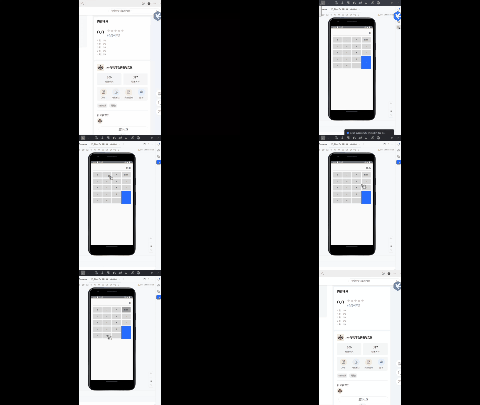
问题1:实现操作功能中,在main_activity.xml文件里,输入tools:context=".MainActivity">时,.MainActivity变红报错。
问题1解决方案:网上查阅资料后发现可能是软件本身的毛病,有时把这行代码重新手动输入一遍问题会自动消失。
问题2:设计页面时没有思路,不知道怎样布局。
问题2解决方案:通过查看一些网站中的制作计算器的篇章,了解相关的控件布局,我通过模仿其进行排版。
这次实验对我来说比较有难度,要实现计算器布局,还要实现计算器功能。计算器布局需要规划好布局、弄清楚控件的属性,通过借助课上ppt和网上的资料,这一部分才得以解决。然后对于功能的实现,因为我进行了一些代码的参考,将所有的控件都初始化完成,实现事件点击监听器的部分就比较困难。使用kotlin语言的时候,运行起来有各种各样的错误,所以我只能边找解决办法边写,最后才拼凑出来一个计算器。
本次实验我让我对应Android studio有了更深的理解,比如如何将xml文件和kt文件相关联,对安卓的开发有了更进一步的认识。
