


8
社区成员
 发帖
发帖 与我相关
与我相关 我的任务
我的任务
 分享
分享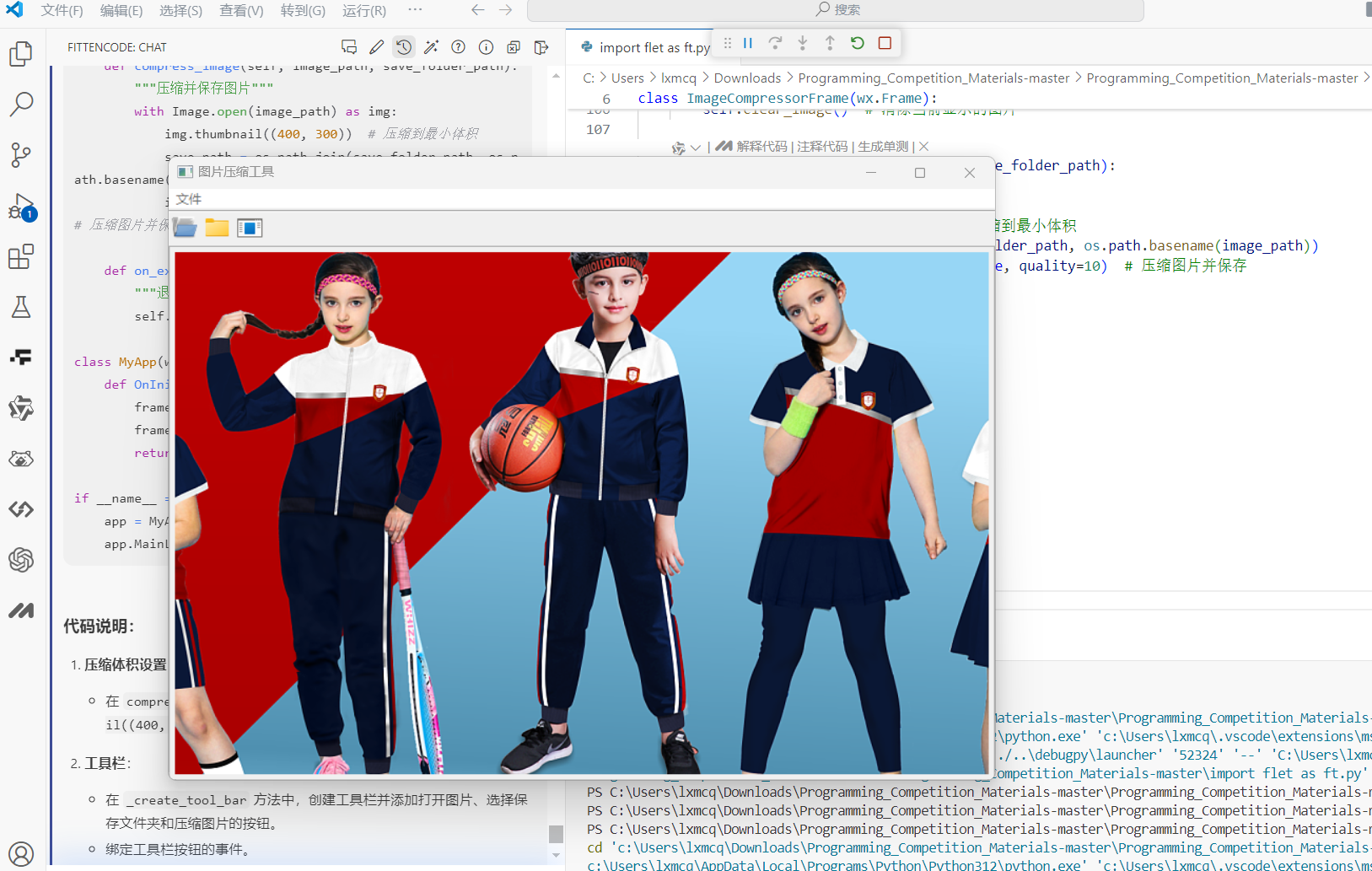
源代码传奇开心果IDE运行和调试通过
import wx
import wx.lib.agw.aui as aui
import os
from PIL import Image

class ImageCompressorFrame(wx.Frame):
    def __init__(self):
        super().__init__(None, title="图片压缩工具", size=(800, 600))

        # 初始化菜单栏和工具栏
        self._create_menu_bar()
        self._create_tool_bar()

        # 使用AUI管理器管理布局
        self.mgr = aui.AuiManager(self)

        # 创建图像显示控件
        self.image_panel = wx.Panel(self)
        self.image_sizer = wx.BoxSizer(wx.VERTICAL)
        self.image_ctrl = wx.StaticBitmap(self.image_panel, wx.ID_ANY, wx.NullBitmap)
        self.image_sizer.Add(self.image_ctrl, 1, wx.EXPAND | wx.ALL, 5)
        self.image_panel.SetSizer(self.image_sizer)

        self.mgr.AddPane(self.image_panel, aui.AuiPaneInfo().CenterPane())
        self.mgr.Update()

        # 初始化一些变量
        self.current_image_path = None
        self.save_folder_path = None  # 保存压缩图片的文件夹路径
        self.compression_size = "small"  # 默认压缩体积为小

    def _create_menu_bar(self):
        """创建菜单栏"""
        menu_bar = wx.MenuBar()

        # 文件菜单
        file_menu = wx.Menu()
        open_image_item = file_menu.Append(wx.ID_OPEN, "打开图片...", "打开单个图片文件")
        select_save_folder_item = file_menu.Append(wx.ID_ANY, "选择保存文件夹...", "选择保存压缩图片的文件夹")
        compress_single_item = file_menu.Append(wx.ID_ANY, "压缩图片", "压缩已选择的图片")
        exit_item = file_menu.Append(wx.ID_EXIT, "退出", "退出程序")
        menu_bar.Append(file_menu, "文件")

        self.SetMenuBar(menu_bar)

        # 菜单事件绑定
        self.Bind(wx.EVT_MENU, self.on_open_image, open_image_item)
        self.Bind(wx.EVT_MENU, self.on_select_save_folder, select_save_folder_item)
        self.Bind(wx.EVT_MENU, self.on_compress_single, compress_single_item)
        self.Bind(wx.EVT_MENU, self.on_exit, exit_item)

    def _create_tool_bar(self):
        """创建工具栏"""
        self.toolbar = self.CreateToolBar()
        open_image_tool = self.toolbar.AddTool(wx.ID_OPEN, "打开图片", wx.ArtProvider.GetBitmap(wx.ART_FILE_OPEN, wx.ART_TOOLBAR))
        select_save_tool = self.toolbar.AddTool(wx.ID_ANY, "选择保存文件夹", wx.ArtProvider.GetBitmap(wx.ART_FOLDER_OPEN, wx.ART_TOOLBAR))
        compress_single_tool = self.toolbar.AddTool(wx.ID_ANY, "压缩图片", wx.ArtProvider.GetBitmap(wx.ART_EXECUTABLE_FILE, wx.ART_TOOLBAR))
        self.toolbar.Realize()

        # 工具栏事件绑定
        self.Bind(wx.EVT_TOOL, self.on_open_image, open_image_tool)
        self.Bind(wx.EVT_TOOL, self.on_select_save_folder, select_save_tool)
        self.Bind(wx.EVT_TOOL, self.on_compress_single, compress_single_tool)

    def on_open_image(self, event):
        """打开单个图片文件"""
        with wx.FileDialog(self, "打开图片文件", wildcard="Image files (*.jpg;*.png)|*.jpg;*.png",
                           style=wx.FD_OPEN | wx.FD_FILE_MUST_EXIST) as fileDialog:
            if fileDialog.ShowModal() == wx.ID_CANCEL:
                return  # 用户取消

            self.current_image_path = fileDialog.GetPath()
            self.load_image(self.current_image_path)

    def load_image(self, image_path):
        """加载并显示图像"""
        image = wx.Image(image_path, wx.BITMAP_TYPE_ANY)
        self.image_ctrl.SetBitmap(wx.Bitmap(image))
        self.image_panel.Layout()

    def clear_image(self):
        """清除当前显示的图片"""
        self.image_ctrl.SetBitmap(wx.NullBitmap)
        self.image_panel.Layout()

    def on_select_save_folder(self, event):
        """选择保存压缩图片的文件夹"""
        with wx.DirDialog(self, "选择保存压缩图片的文件夹", style=wx.DD_DEFAULT_STYLE) as dirDialog:
            if dirDialog.ShowModal() == wx.ID_CANCEL:
                return  # 用户取消
            self.save_folder_path = dirDialog.GetPath()
            wx.MessageBox(f"保存文件夹已选择: {self.save_folder_path}", "提示", wx.OK | wx.ICON_INFORMATION)

    def on_compress_single(self, event):
        """压缩单个图片"""
        if not self.current_image_path:
            wx.MessageBox("请先选择单个图片文件", "提示", wx.OK | wx.ICON_INFORMATION)
            return

        if not self.save_folder_path:
            wx.MessageBox("请先选择保存压缩图片的文件夹", "提示", wx.OK | wx.ICON_INFORMATION)
            return

        self.compress_image(self.current_image_path, self.save_folder_path)
        wx.MessageBox("图片压缩完成", "提示", wx.OK | wx.ICON_INFORMATION)
        self.clear_image()  # 清除当前显示的图片

    def compress_image(self, image_path, save_folder_path):
        """压缩并保存图片"""
        with Image.open(image_path) as img:
            img.thumbnail((400, 300))  # 压缩到最小体积
            save_path = os.path.join(save_folder_path, os.path.basename(image_path))
            img.save(save_path, optimize=True, quality=10)  # 压缩图片并保存

    def on_exit(self, event):
        """退出应用程序"""
        self.Close()

class MyApp(wx.App):
    def OnInit(self):
        frame = ImageCompressorFrame()
        frame.Show()
        return True

if __name__ == "__main__":
    app = MyApp()
    app.MainLoop()
代码说明: 1. 压缩体积设置: ◦ 在 compress_image 方法中,将图片压缩到最小体积,使用 thumbnail((400, 300)) 和 quality=10。 2. 工具栏: ◦ 在 _create_tool_bar 方法中,创建工具栏并添加打开图片、选择保存文件夹和压缩图片的按钮。 ◦ 绑定工具栏按钮的事件。 3. 清除图片: ◦ 添加了 clear_image 方法,用于清除当前显示的图片。 ◦ 在 on_compress_single 方法中,压缩完成后调用 clear_image 方法清除当前显示的图片。 4. 其他功能: ◦ 保留的功能,包括打开图片、选择保存文件夹、压缩图片和退出程序。

