6,733
社区成员
 发帖
发帖 与我相关
与我相关 我的任务
我的任务
 分享
分享目录
C#中的IO(Input/Output)操作包括读取和写入文件、读取和写入流、以及操作目录和文件夹等。这些操作都可以通过System.IO命名空间中的类实现。下面对C# IO相关的类和操作进行介绍。
文件操作File类 File类提供了对文件的创建、读取、写入、复制、移动、重命名和删除等操作。
StreamReader和StreamWriter类 StreamReader和StreamWriter类用于读取和写入文本文件。
目录和文件夹操作Directory和DirectoryInfo类 Directory和DirectoryInfo类提供了对目录和文件夹的创建、移动、重命名和删除等操作。
要创建一个文件,可以使用System.IO.File.Create()方法。该方法接受一个文件路径和一个可选的缓冲区大小作为参数,然后返回一个FileStream对象,该对象可用于写入文件。
代码:
using System;
using System.Collections.Generic;
using System.IO;
using System.Linq;
using System.Text;
using System.Threading.Tasks;

namespace 文件操作
{
    internal class Program
    {
        static void Main(string[] args)
        {
            try
            {
                string filePath = @"E:\myFile.txt";
                FileStream fileStream = File.Create(filePath);
                fileStream.Close();
            }
            catch (Exception ex)
            {
                Console.WriteLine("创建文件失败:" + ex.Message);
            }
            Console.WriteLine("创建文件成功!");
            Console.ReadKey();
        }
    }
}
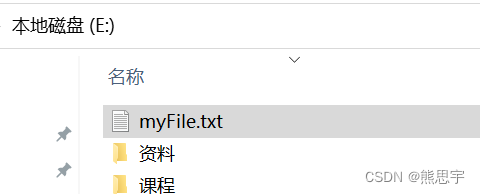
打开E盘,文件是创建成功了,只是这个 txt 文件里没有任何内容
写入文件可以使用下面方式: 1. File.WriteAllText(FilePath,String) 2. File.WriteAllText(FilePath, String,Encoding) ----指定编码 3. File.WriteAllLines(FilePath,String[]) 4. File.WriteAllLines(FilePath,String[],Encoding) ----指定编码
前面两种写入的是一个字符串,后面两种写入的是一个字符串数组。
使用 File.WriteAllText 或 File.WriteAllLines 方法时,如果指定的文件路径不存在,会创建一个新文件;如果文件已经存在,则会覆盖原文件。
第一种:字符串的写入
using System;
using System.Collections.Generic;
using System.IO;
using System.Linq;
using System.Text;
using System.Threading.Tasks;

namespace 文件操作
{
    internal class Program
    {
        static void Main(string[] args)
        {
            string filePath = @"E:\myFile.txt";
            string content = "读取读取读取读取读取读取";
            //第一种
            //File.WriteAllText(filePath, content);
            //第二种
            File.WriteAllText(filePath, content, Encoding.UTF8);

            Console.ReadKey();
        }
    }
}
打开刚创建的 myFile.txt 文件:

第二种:多行字符串的写入
using System;
using System.Collections.Generic;
using System.IO;
using System.Linq;
using System.Text;
using System.Threading.Tasks;

namespace 文件操作
{
    internal class Program
    {
        static void Main(string[] args)
        {
            string filePath = @"E:\myFile.txt";
            string[] contentArr = { "dddd", "eeeeee" };

            //第一种
            //File.WriteAllLines(filePath, contentArr);
            //第二种
            File.WriteAllLines(filePath, contentArr, Encoding.UTF8);

            Console.ReadKey();
        }
    }
}
上面写入的字符串现在已经被覆盖了

上面写入字符串都会覆盖原有的内容,下面就介绍如何追加字符串。
第三种:追加字符串
using System;
using System.Collections.Generic;
using System.IO;
using System.Linq;
using System.Text;
using System.Threading.Tasks;

namespace Test1
{
    internal class Program
    {
        static void Main(string[] args)
        {
            string filePath = @"E:\myFile.txt";
            string content = "423423423423";

            File.AppendAllText(filePath, content);

            Console.ReadKey();
        }
    }
}
filePath 路径这个文件如果没有,C# 会自动生成这个文件,运行后找到这个文件,就可以看到添加的内容

下面我将内容做一下更改,再次运行
namespace Test1
{
    internal class Program
    {
        static void Main(string[] args)
        {
            string filePath = @"E:\myFile.txt";
            string content = "dffsddgaadfasdfa";

            File.AppendAllText(filePath, content);

            Console.ReadKey();
        }
    }
}
我们重写打开 myFile.txt 这个文件,发现文字是追加上去了,但是并没有换行

其实换行也非常的简单,直接在字符串里加转义字符 \n 就行了
namespace Test1
{
    internal class Program
    {
        static void Main(string[] args)
        {
            string filePath = @"E:\myFile.txt";
            string content = "\n哇哈哈哈哈";

            File.AppendAllText(filePath, content);

            Console.ReadKey();
        }
    }
}
效果:

第四种:追加多行字符串
按上面的套路,添加多行当然也是可以的,不过用的方法名要换一个了
使用File.AppendAllLines****来添加多行文字。
using System;
using System.Collections.Generic;
using System.IO;
using System.Linq;
using System.Text;
using System.Threading.Tasks;

namespace Test1
{
    internal class Program
    {
        static void Main(string[] args)
        {
            string filePath = @"E:\myFile.txt";
            string[] list = { "\n恭喜", "发财", "红包", "拿来" };
            File.AppendAllLines(filePath, list, Encoding.UTF8);

            Console.ReadKey();
        }
    }
}
运行后:

读取文件可以使用下面方式:
1.File.ReadAllText(FilePath) 2.File.ReadAllText(FilePath, Encoding) ----指定编码 3.File.ReadAllLines(FilePath) 4.File.ReadAllLines(FilePath, Encoding) ----指定编码
以字符串接收方式
using System;
using System.Collections.Generic;
using System.IO;
using System.Linq;
using System.Text;
using System.Threading.Tasks;

namespace 文件操作
{
    internal class Program
    {
        static void Main(string[] args)
        {
            string path = @"E:\myFile.txt";
            //string content = File.ReadAllText(path);
            string content = File.ReadAllText(path,Encoding.UTF8);
            Console.WriteLine(content);
            Console.ReadKey();
        }
    }
}
以字符串数组接收的方式
using System;
using System.Collections.Generic;
using System.IO;
using System.Linq;
using System.Text;
using System.Threading.Tasks;

namespace 文件操作
{
    internal class Program
    {
        static void Main(string[] args)
        {
            string path = @"E:\myFile.txt";
            //string[] content = File.ReadAllLines(path);
            string[] content = File.ReadAllLines(path, Encoding.UTF8);
            for (int i = 0; i < content.Length; i++)
            {
                Console.WriteLine(content[i]);
            }
            Console.ReadKey();
        }
    }
}
采用流(Stream)的方式来读取内容
1.StreamReader(FilePath) 2.StreamReader(FilePath, Encoding) 3.StreamReader(FileStream) 4.StreamReader(FileStream, Encoding) 5.File.OpenText(FilePath) 6.FileInfo.OpenText()
基于StreamReader,一行一行读取
using System;
using System.Collections.Generic;
using System.IO;
using System.Linq;
using System.Text;
using System.Threading.Tasks;

namespace 文件操作
{
    internal class Program
    {
        static void Main(string[] args)
        {
            string path = @"E:\myFile.txt";
            //StreamReader sr1 = new StreamReader(path);
            //StreamReader sr2 = new StreamReader(path, Encoding.UTF8);


            //初始化FileStream
            FileStream fs = new FileStream(path, FileMode.Open, FileAccess.Read, FileShare.None);
            //StreamReader sr3 = new StreamReader(fs);
            StreamReader sr4 = new StreamReader(fs, Encoding.UTF8);

            string line = string.Empty;
            while((line = sr4.ReadLine()) != null)
            {
                Console.WriteLine(line);
            }
            sr4.Close();

            Console.ReadKey();
        }
    }
}
一次性读完
string path = @"E:\myFile.txt";
StreamReader sr = new StreamReader(path, Encoding.UTF8);
string content = sr.ReadToEnd();
Console.WriteLine(content);
sr.Close();
要复制文件,可以使用System.IO.File.Copy()方法。该方法接受源文件路径和目标文件路径作为参数,并将源文件复制到目标文件。如果目标文件已存在,则将被覆盖。
using System;
using System.Collections.Generic;
using System.IO;
using System.Linq;
using System.Text;
using System.Threading.Tasks;

namespace 文件操作
{
    internal class Program
    {
        static void Main(string[] args)
        {
            string sourceFilePath = @"E:\myFile.txt";
            string destinationFilePath = @"E:\myFile_copy.txt";
            File.Copy(sourceFilePath, destinationFilePath);

            Console.ReadKey();
        }
    }
}
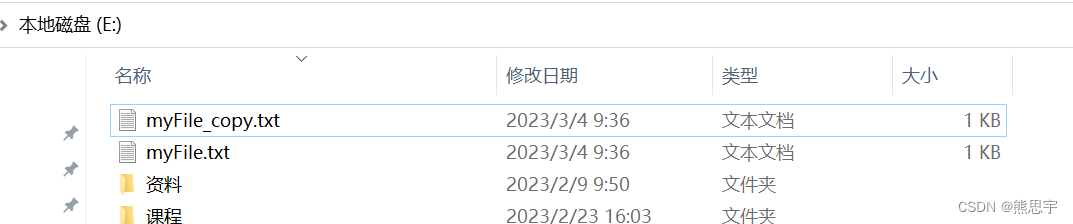
打开对应的目录,可以看到拷贝成功了,而且字节数也是一样的
要移动文件,可以使用System.IO.File.Move()方法。该方法接受源文件路径和目标文件路径作为参数,并将源文件移动到目标文件。如果目标文件已存在,则将被覆盖。
using System;
using System.Collections.Generic;
using System.IO;
using System.Linq;
using System.Text;
using System.Threading.Tasks;

namespace 文件操作
{
    internal class Program
    {
        static void Main(string[] args)
        {
            string sourceFilePath = @"E:\myFile.txt";
            string destinationFilePath = @"D:\myFile.txt";
            File.Move(sourceFilePath, destinationFilePath);

            Console.ReadKey();
        }
    }
}
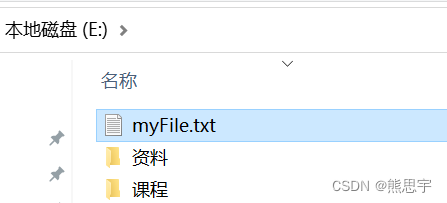
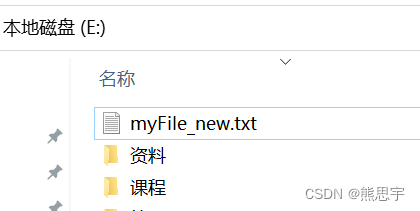
要重命名文件,可以使用System.IO.File.Move()方法。该方法接受源文件路径和目标文件路径作为参数,并将源文件重命名为目标文件。如果目标文件已存在,则将被覆盖。
在上一节 移动文件 中,我们将 myFile.txt 文件移动到 D 盘了,执行下面操作之前,要先剪切回来再执行操作哦
using System;
using System.Collections.Generic;
using System.IO;
using System.Linq;
using System.Text;
using System.Threading.Tasks;

namespace 文件操作
{
    internal class Program
    {
        static void Main(string[] args)
        {
            string filePath = @"E:\myFile.txt";
            string newFilePath = @"E:\myFile_new.txt";
            File.Move(filePath, newFilePath);

            Console.ReadKey();
        }
    }
}
运行后,可以看到效果了
要删除文件,可以使用System.IO.File.Delete()方法。该方法接受文件路径作为参数,并将该文件从磁盘上删除。
using System;
using System.Collections.Generic;
using System.IO;
using System.Linq;
using System.Text;
using System.Threading.Tasks;

namespace 文件操作
{
    internal class Program
    {
        static void Main(string[] args)
        {
            string newFilePath = @"E:\myFile_new.txt";
            File.Delete(newFilePath);

            Console.ReadKey();
        }
    }
}
如果这个帖子对你有所帮助,欢迎 关注 + 点赞 + 留言
end
文章来源: https://blog.csdn.net/qq_38693757/article/details/127820065
版权声明: 本文为博主原创文章,遵循CC 4.0 BY-SA 知识共享协议,转载请附上原文出处链接和本声明。